
Visit Tool
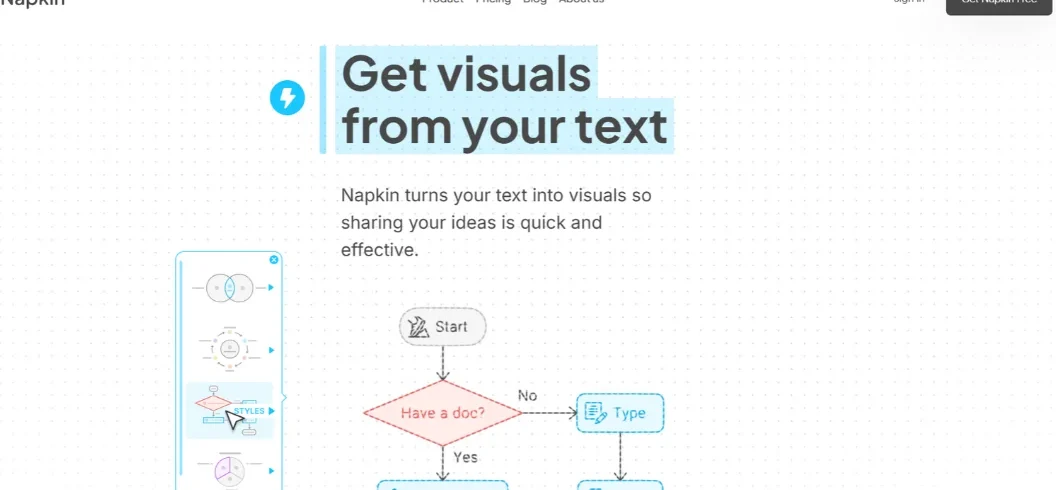
Napkin AI is an AI-powered visual communication platform that transforms written ideas into diagrams, flowcharts, mind maps, infographics, and presentations. Instead of manually designing every visual, users can paste text, import documents, and generate editable graphics within minutes. It also offers Napkin Slides, which helps turn ideas into presentation-ready decks.
Whether you are a student, blogger, marketer, teacher, or business owner, Napkin AI can help make complicated information easier to understand.
But how does it work, what features does it offer, and is the free plan enough?
This guide explores Napkin AI’s features, pricing, practical uses, limitations, and alternatives to help you decide whether it belongs in your creative workflow.
What Is Napkin AI?
Napkin AI is a web-based visual communication tool designed to turn written information into professional-looking graphics.
Traditional design tools require users to create diagrams, arrange shapes, select icons, and adjust layouts manually. Napkin simplifies this process by analyzing existing text and suggesting suitable visual formats.
For example, if you write about the five stages of digital marketing, Napkin can suggest a process diagram or infographic that presents those stages more clearly.
Its main products include Napkin Visuals and Napkin Slides.
Napkin Visuals focuses on individual graphics, including charts, flowcharts, mind maps, and diagrams. Napkin Slides helps users transform ideas into complete presentations.
The platform is particularly useful for people who understand their subject but do not have professional graphic design skills.
How Does Napkin AI Work?
Napkin AI follows a simple text-to-visual workflow. You provide information, generate visual options, customize your preferred design, and export the finished result.
1. Add Your Written Content
Start by creating a document and pasting your existing text.
You can also import supported files, including PowerPoint, Word, PDF, HTML, and Markdown documents.
2. Generate Visual Suggestions
Select the relevant text and use the visual generation feature.
Napkin analyzes the content and suggests graphics that match the information.
For example, a comparison of two products may become a comparison diagram, while a sequence of instructions may become a flowchart.
3. Customize the Design
Choose a suitable visual and adjust its appearance.
You can edit colors, fonts, icons, layouts, and individual elements to match your preferred style.
4. Export and Share
Once your visual is ready, export it into a supported format.
Depending on your plan and export limits, available formats include PNG, PDF, PowerPoint, and SVG.
This workflow makes Napkin useful for presentations, blog posts, reports, educational materials, and social media content.
7 Key Features of Napkin AI
Napkin AI offers several features that help users communicate information visually.
1. AI Diagram Generator
The diagram generator transforms written explanations into structured visual representations.
You can create process diagrams, organizational structures, comparison graphics, and other visual formats.
This is useful when a paragraph contains multiple connected ideas that are difficult to understand quickly.
2. AI Flowchart Generator
Napkin can turn step-by-step instructions into flowcharts.
For example, a business owner could describe a customer purchasing process and generate a visual showing how orders move from checkout to delivery.
Flowcharts make complicated procedures easier to explain to employees and customers.
3. Mind Map Creation
Mind maps help organize related concepts around a central subject.
Napkin can convert written notes into visual structures that show relationships between different ideas.
Students can use them for revision, while marketers can organize campaign strategies and content topics.
4. AI Infographic Creation
Infographics combine text, icons, shapes, and visual information into a single graphic.
Napkin helps create infographics from existing written material without requiring advanced design skills.
These visuals can be useful for educational articles, business reports, presentations, and social media posts.
5. Data Charts
Napkin supports visual representations of numerical information.
Depending on the supplied content, users can create charts that make comparisons, trends, and relationships easier to understand.
Always verify the original figures before publishing a chart, particularly when working with financial or research data.
6. Napkin Slides
Napkin Slides is designed to transform ideas into complete presentation decks.
Unlike individual visual generation, this feature focuses on creating a structured presentation.
The Slides product is presented as a beta feature, so users should check its current availability and capabilities before relying on it for important presentations.
7. Editing and Brand Customization
Generated graphics are editable rather than fixed images.
Users can modify individual elements, change colors, adjust typography, and apply brand styles.
Paid plans provide additional customization options, including more brand styles and custom fonts.
Napkin AI Pricing: Is It Free?
Napkin AI offers Free, Plus, and Pro plans.
Its pricing model uses AI credits to measure certain generation activities.
The following prices are the advertised annual-billing rates in USD per person per month.
| Plan | Price | AI credits |
|---|---|---|
| Free | $0 | 500 per week |
| Plus | $9/month | 10,000 per month |
| Pro | $22/month | 30,000 per month |
| Enterprise | Custom | Custom arrangements |
Annual billing offers a 25% saving compared with monthly billing. Check the official Napkin pricing page for current monthly rates and plan conditions.
What Does the Free Plan Include?
The Free plan is suitable for beginners who want to explore AI-generated visuals.
It includes:
- 500 AI credits every week.
- Unlimited visual editing.
- Unlimited supported file imports.
- Unlimited PNG and PDF exports.
- Built-in styles, fonts, and icons.
- Access to Napkin Slides.
Free exports include Napkin branding, and PowerPoint and SVG exports have usage limits.
What Do Plus and Pro Offer?
Plus provides 10,000 monthly AI credits, unlimited PowerPoint and SVG exports, three brand styles, and the ability to remove Napkin branding.
Pro increases the monthly allowance to 30,000 credits and adds exclusive designs, custom branding, font uploads, and optional credit top-ups.
Both paid plans also include premium AI image models for Slides.
How Do Napkin AI Credits Work?
Credits are consumed when generating visuals, creating slides, requesting agent changes, and applying certain effects.
Napkin’s current help documentation explains that generating a visual generally costs around one credit per selected word. A slide generally uses 100 credits.
Direct manual editing of text, colors, fonts, and elements does not consume AI credits.
One useful detail is that generating or regenerating the first presentation costs no credits while it is your only presentation and contains no more than 20 slides.
Free credits refresh weekly, while paid-plan credits refresh monthly. Included credits do not roll over.
How to Use Napkin AI: Beginner Tutorial
You can start using Napkin AI without installing desktop software.
Step 1: Visit the Official Website
Open Napkin AI and create an account using Google or your email address.
Step 2: Create Your First Napkin
Select the option to create a new document.
You can paste existing content or use the platform’s content-generation feature to begin with a new idea.
Step 3: Select Your Text
Choose the paragraph or section you want to convert into a visual.
Selecting a smaller, relevant section can help produce a more focused result and manage credit consumption.
Step 4: Generate Visuals
Click the Generate Visual option.
Napkin will analyze the selected content and provide visual suggestions.
Review the available options and choose the design that communicates your message most effectively.
Step 5: Edit Your Design
Adjust the layout, colors, typography, and icons.
For a business presentation, use consistent brand colors and readable text.
For educational content, prioritize clarity over decorative elements.
Step 6: Export Your Visual
Export your finished work as PNG, PDF, PowerPoint, or SVG, depending on your subscription and available limits.
You can then add it to a blog post, presentation, report, or social media publication.
Practical Use Cases of Napkin AI
Napkin AI is useful across different industries because visual communication is important in almost every type of content.
For Bloggers and Content Creators
Bloggers can transform lengthy explanations into infographics and diagrams.
For example, an article about website development could include a visual explaining the process from domain registration to publishing.
These graphics can improve readability and make important information easier to remember.
For Students and Teachers
Students can turn study notes into mind maps, while teachers can create diagrams to explain difficult subjects.
Visual learning materials are particularly helpful when a topic contains several connected stages or concepts.
For Digital Marketers
Marketing professionals can create customer journey diagrams, campaign workflows, content strategies, and comparison graphics.
These visuals can help teams communicate plans without relying entirely on lengthy documents.
For Business Professionals
Business owners can use Napkin to prepare reports, explain internal processes, and create presentation graphics.
Project managers can also convert written project plans into timelines and workflow diagrams.
Napkin AI vs Canva vs Gamma
Napkin AI competes with several visual content platforms, but their primary purposes are different.
| Feature | Napkin AI | Canva | Gamma |
|---|---|---|---|
| Main purpose | Text-to-visual creation | General graphic design | AI presentations and documents |
| Diagrams | Yes | Yes | Supported |
| Infographics | Yes | Yes | Supported |
| Full presentations | Napkin Slides | Yes | Yes |
| Design customization | Editable graphics | Extensive design editor | Presentation-focused editing |
| Best for | Turning explanations into visuals | Broad creative design | Creating complete AI-assisted decks |
Napkin AI is a good option when you already have written information and want to visualize it quickly.
Canva is more suitable for users who need broader graphic design tools, templates, and marketing assets.
Gamma is worth considering when your primary goal is to create complete presentations or interactive documents.
The right choice depends on the type of content you create most often.
Advantages and Limitations of Napkin AI
| Advantages | Limitations |
|---|---|
| Easy text-to-visual workflow | Credit limits on generation |
| Editable diagrams and graphics | Free exports include branding |
| Multiple visual formats | Some export limits on Free |
| Supports document imports | Visual generation is best on desktop |
| Useful for presentations and blogs | Not a replacement for professional design software |
| Brand customization options | Generated results may need manual refinement |
Napkin’s biggest strength is speed. It reduces the time required to turn written explanations into visual content.
However, it does not automatically guarantee that every diagram is accurate, visually consistent, or ready for publication.
Review labels, relationships, and numerical information before sharing the final graphic.
Is Napkin AI Worth Using in 2026?
Napkin AI is worth considering if you regularly create presentations, educational materials, reports, or blog content.
Its text-to-visual workflow is especially useful for people who want professional-looking diagrams without spending time designing every element manually.
The Free plan provides a practical way to explore the platform, while Plus and Pro are more suitable for regular users who need additional credits, branding, and export options.
However, if you require detailed illustration, advanced photo editing, or highly customized interactive designs, a broader design platform may be a better choice.
The best approach is to test Napkin with an actual paragraph from your work and compare the generated result with what you would create manually.
Frequently Asked Questions
What is Napkin AI used for?
Napkin AI is used to transform written content into diagrams, flowcharts, mind maps, infographics, charts, and presentations.
Is Napkin AI free?
Yes. It offers a free plan with 500 weekly AI credits, unlimited visual editing, file imports, and PNG and PDF exports.
Can Napkin AI create PowerPoint presentations?
Yes. Napkin supports individual PowerPoint visual exports and offers Napkin Slides for creating complete presentation decks.
Does Napkin AI require design skills?
No. Users can generate graphics from text and customize the results without professional design experience.
Is Napkin AI better than Canva?
Not for every task. Napkin specializes in turning text into visuals, while Canva offers a broader graphic design environment with more general-purpose creative tools.
Can I use Napkin AI for blog posts?
Yes. You can create infographics, process diagrams, and other graphics to make blog articles easier to understand.
Final Verdict
Napkin AI makes visual communication easier by converting written information into editable graphics and presentations.
Its diagram generator, flowchart creation, mind maps, data charts, and Napkin Slides features provide useful options for students, marketers, educators, and business professionals.
Although credit limits and customization requirements should be considered, its straightforward workflow makes it a practical tool for everyday content creation.
If you regularly explain complex ideas through written content, Napkin AI is worth trying. Start with the free plan, create a few visuals, and decide whether its paid features match your creative needs.

Leave A Comment